
Resellers · Settings
Adding your team (Admins)
Last updated September 23, 2026
You don't have to run the portal alone. Admins lets you give colleagues their own login, with the right level of access for their job.
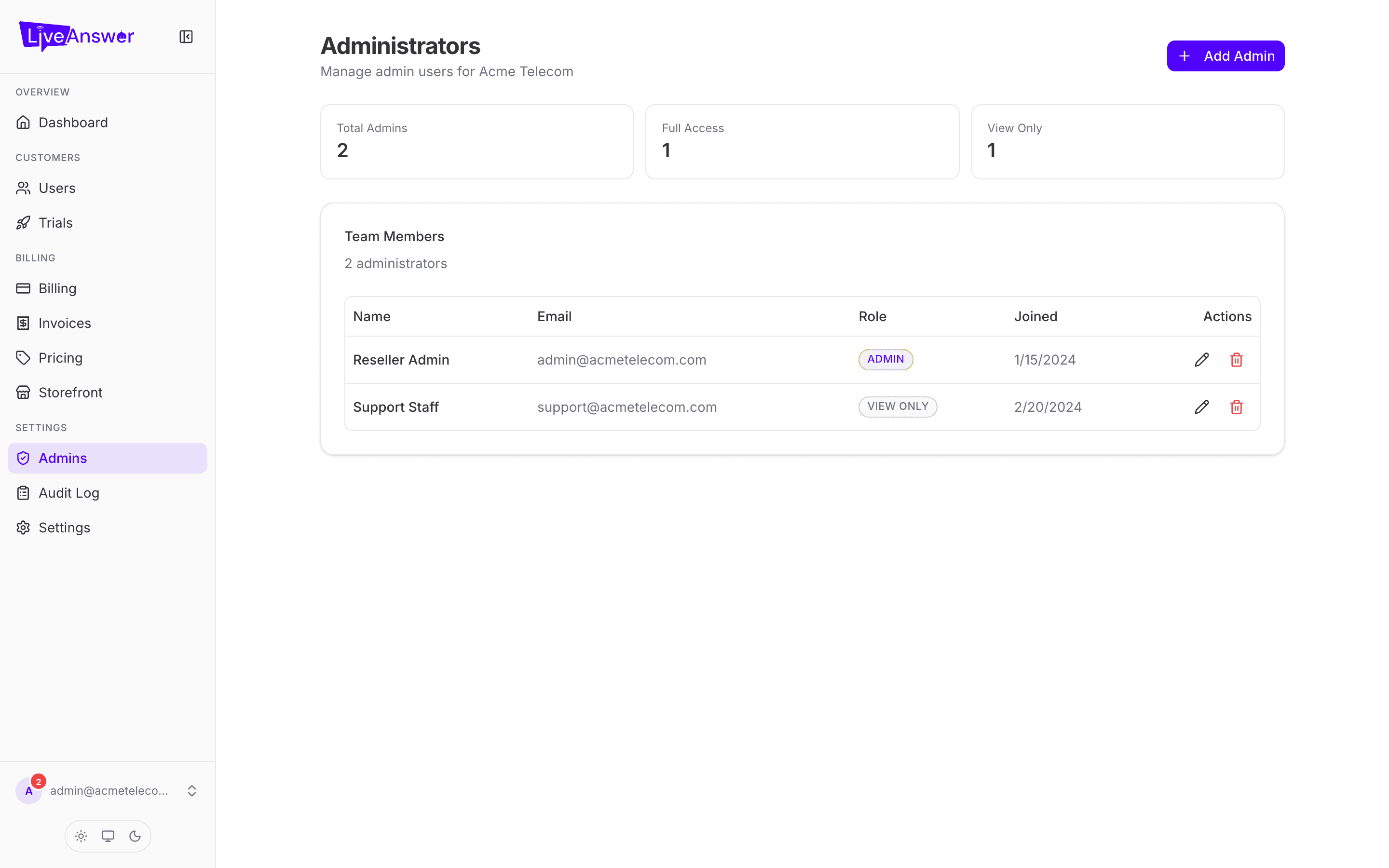
The two roles
| Role | Can do |
|---|---|
| Reseller Admin | Everything you can: add and edit customers, change prices, manage billing, add other team members. |
| Reseller (Read-only) | View everything, change nothing. Ideal for finance, support, or anyone who needs to look things up without the risk of changing them. |
Adding a team member
- Click Add Admin.
- Enter their email and a temporary password (at least 8 characters).
- Optionally add their display name.
- Choose a role.
- Click Add.
Send them the email and password. They can change the password after their first sign-in.
Editing or removing someone
Each row has an Edit and a Remove action.
- Edit — change the display name, set a new password (leave blank to keep the current one), or change the role. Promoting someone from Read-only to Admin takes effect immediately.
- Remove — takes away their access. You'll be asked to confirm. This can't be undone, but you can always add them again.
Heads up: You can't remove yourself. If you need to hand the account over, add the new owner as a Reseller Admin first, then have them remove you.
Changing your own password
Find your own row and click Edit. Enter a new password and save.